In-Game Editor
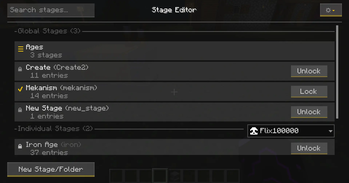
Everything a stage file can hold can be built here instead, without leaving the game. The editor writes the same JSON into the same folders, so a pack can be started in the editor and finished by hand, or the other way round.
Opening it
Permission level 2, in singleplayer or on a server. Either the History Stages button in the pause
menu, or /history editor.
The pause-menu button can be hidden with showEditorButton in
[visuals]; the command still works for operators
when it is off.
Managing stages
The Stage Overview is the front page: create, edit, duplicate and delete stages. A new stage asks for its display name up front.
Stage Settings is a screen of its own for the stage's metadata — id, display name, research
time — kept apart from the lock entries so the two do not crowd each other. It also holds
pedestal tier gating
(min_pedestal_tier, pedestal_tier_mode), the mode with its
lock triggers, and the cards below:
- Locks — the Interchangeable switch, and the rows that fix lock actions for the whole stage.
- Individual — Lose on Death and Share with team, on individual stages only.
Logic, the button next to Settings and Dependencies, opens the stage's
logic blocks. Its label counts them: Logic (2).
Organise mode, also on the overview, is for large packs: tick several stages and folders and drag them onto a target folder in one move. Moving a folder brings its contents along.
Disguises, in the overview's header menu, lists every disguise rule in the pack, with what it looks like, how it drops and which stages lock it.
Per-player unlocking sits there too — unlock or relock an individual stage for one online
player, or for everyone online at once, without typing
/history individual unlock. It runs the same server-side path as the
command (sync, notifications, item cleanup on relock), so it behaves identically. It reaches only
players who are online at that moment.
Picking what to lock
Searchable pickers for items, fluids, recipes, entities, dimensions, biomes, structures and villager trades. One search and filter bar across all of them, browsing the full registry or selecting straight out of your own inventory, and a multi-select mode with a Selected tab for bulk work.
Because they read the live registry, a picker cannot produce an id that does not exist — which is the main reason to use the editor for anything larger than a handful of entries.
Right-click is how you edit an entry that is already in a list. The picker only adds things; everything after that — NBT criteria, lock actions, a spawn rule, a generation cap, copying the id, removing it again — is in the context menu that opens on a right-click. Which items appear depends on the tab:
| Menu entry | Where it appears |
|---|---|
| Edit NBT | Items, Tags, Exceptions, Trades |
| Recipes using this item | Items → Recipes |
| Disguise | Items, Tags → Disguises |
| Lock Actions | Items, Tags, Mods, Fluids, Enchantments, Potion Effects |
| Locked from level, Applies to | Enchantments, Potion Effects → Enchantments & Effects |
| Text Override | Items, Tags, Mods, Fluids — but only while the stage's Display card is set to replace |
| Generation | Structures, on global stages only |
| SpawnControl | Spawn |
| Interaction Actions, Item Filter | Interaction |
| Merchant Levels | Trade professions |
| Edit | Mods, and Zones |
| Copy ID, Remove | everywhere |
Two of those go missing rather than grey out, which reads as a bug the first time.
Text Override is absent until hidden_display is actually replacing a name or a tooltip —
there is nothing to override otherwise. Generation is absent on an individual stage, because
world generation cannot be gated per player.
An installed addon appends its own items below the built-in ones and above Copy ID and Remove.
Left-click does something useful on two tabs: a recipe card opens read-only so you can see what an id actually makes, and a zone row opens the zone editor.
The recipe picker works differently enough to have its own section below, and so do the zone editor and the spawn rule dialog.
The NBT editor builds NBT and data component criteria as cards, with autocompletion and live validation. On 1.21+ it accepts data components alongside the legacy fields, and Ctrl-click on an inventory slot imports that item's current state instead of transcribing it by hand.
The lock actions editor narrows an entry to specific interactions rather than locking it outright, per item, tag or mod entry. → Unlock Actions
Dependencies
The Dependency Editor builds prerequisites visually: deposited items and item tags, entity kills, XP levels, statistics, scoreboard objectives, other stages — arranged into groups with their own AND/OR logic.
To see how the whole chain fits together, open the Stage Graph from the Stage Overview. It draws every stage as a node with its dependencies as edges, which is what makes a long chain or a link you did not mean visible at a glance.
It is one screen with two ways in. Opened from the editor it shows every stage, ignoring the
visibility rules in graph.toml. Opened from the pause menu it applies them, so players see only
what the pack wants them to.
That is also where the graph's layout and its per-stage styling are done — the node positions and the Re-arrange button live in the graph itself, not in a separate authoring tool.
Warnings while you build
The editor flags overlaps between global and individual stages as you create them, since that is
what turns on a
dual-phase lock
— sometimes on purpose, sometimes not. Entries that trigger one carry a [Dual] badge.
Recipe entries whose id is no longer in the game are shown in red on the Recipes tab. → Recipes
Save, duplicate and delete report through toasts rather than chat messages, so the flow is not interrupted.
The config editor
A tab of its own for every setting in visual.toml, gameplay.toml and graph.toml, grouped into
Common, Client and Graph tabs with a reset-to-defaults option. That includes the
research booster list and the
scroll tooltip layout, both of which are
unpleasant to write as TOML strings by hand.
Saving needs permission level 2, the same bar as the editor itself. → Config Files
The Recipe Picker
The recipe picker is one panel with two columns. The left is a grid of everything recipes produce; clicking one fills the right with that item's recipes, drawn as cards in the recipe's real shape. A shaped recipe shows its pattern with the holes where the recipe has holes, which is the only way to tell two recipes apart that use the same ingredients in a different arrangement.
Click cards to select them. Selection survives moving to another item, so several recipes across several items can be gathered before pressing Add. The Selected tab lists what is currently chosen; deselecting there works on a snapshot, so cards do not jump around under the cursor. The Select all and Deselect all buttons act on what the right column is showing at that moment, not on the whole pack.
Search matches an item's name, its id, and the recipe types it has — typing smelting finds
everything with a furnace recipe. The namespace filters and @namespace searches read the
recipe's id, not its output item's. That distinction matters: a KubeJS or CraftTweaker recipe
almost always outputs a vanilla item, so filtering by the item would hide precisely the recipes a
pack author wrote themselves.
Fluids
Recipes that produce a fluid and no item appear in the picker too. Their fluids sit in the same grid as the items, after them, drawn with the fluid's own texture; searching for the fluid by name is the quickest way there. Clicking one lists the recipes that could be producing it.
What gets stored is always a recipe id. Going in through a fluid does not create a fluid lock; it only makes those recipes reachable, since a recipe with no item result appears nowhere else in the editor and there is no way to type a recipe id by hand.
A card shows a recipe's fluid ingredients in a row of their own beneath the item pattern, kept separate on purpose: nothing in a recipe says where in the pattern a fluid belongs, so putting one in a grid cell would claim a position that is not known. Amounts are not shown either, for the same reason — the information is not there to read.
The purple mark, and the question mark
Whether a fluid goes into a recipe or comes out of it is not something Minecraft can be asked. It
is read from the way the recipe is written, and mods spell it differently: some write
ingredients and results, others input and output, others ingredient and result. A
spelling that matches none of them leaves the side unknown, and that is what the marks are about.
- A purple edge on a grid entry means no recipe under it is known to produce that fluid — the entry rests entirely on the possibility. The recipes listed are worth checking against a recipe viewer before locking them.
- A purple edge on a slot inside a card means that one fluid could not be placed on either side. The lock treats such a fluid as both ingredient and result, so the card shows it rather than hiding it.
- A question mark in a card's result slot means nothing certain belongs there. The recipe makes no item, and no fluid could be confirmed as its output.
When a recipe is not listed at all
A recipe appears if it produces an item, or a fluid it could be producing. Three kinds fall through:
- recipes whose fluids were all read, with certainty, as ingredients — there is nothing to file them under;
- recipes with no recognisable output of any kind;
- recipes that cannot be written back into their own text form, which is how the fluids are read in the first place.
The lock is less strict than the picker. Gating a fluid still gates every recipe that touches it, including the ones the picker leaves out, because the lock counts an unreadable side as both. A recipe missing from the picker is therefore not a recipe missing from the lock.
On individual stages
The picker offers fewer recipes on an individual stage, and says so above the list. A per-player lock works by asking who is crafting, and only a station a player stands at with its screen open can answer. Furnaces, hoppers and autocrafters resolve recipes with nobody there, so their recipe types are not offered — an entry for them would be written to the stage file and then do nothing.
The Zone Editor
Zones are the one lock type with no registry to pick from — the area has to be drawn. The zone tab lists a stage's zones with a one-line summary of what each does (3 shapes · damage · barrier · inverted), and Edit opens the zone's own screen.
That screen has four sections. General holds the name, the world, and the list of shapes. Effect holds the message, the damage and the potion effects. Protection holds the interaction switches, the hard barrier and the spawn suppression. Display holds the two visibility switches.
Drawing the shapes
There are two ways in, and they meet in the same place:
- Mark it in the world. Sneak + left click with the marker item sets the first corner, sneak + right click the second (the item is named in
[zone_lock]);/history zone markdoes the same without an item. Back in the editor, Marked in the world shows the selection and Use it turns it into a cube. - Type it. Add shape offers a cube, a sphere or a cylinder, and Numbers opens the coordinates for editing by hand — which is how you set a corner in a place you would rather not stand.
A zone is the union of its shapes, so an awkward area is built by dropping several over each other rather than by finding one box that fits.
The map
Every zone screen carries a small map; clicking it opens the large one. It is a top-down view, dragged to pan and scrolled to zoom, and it has buttons to jump to the player (to me) or to frame the whole zone (to zone). A readout under it names the coordinates the cursor is over. A zone in a world the player is not currently in is drawn without terrain — the shapes are still positioned correctly, there is simply nothing to draw them on.
The Spawn Rule Dialog
A spawn lock entry is a rule rather than a checkbox, and the editor opens it as a dialog. The lock phase sits at the top — while locked or after unlock — and the rest is four tabs, each with a count badge saying how much of it is set:
- Sources — the six spawn sources.
- Location — dimensions and biomes (each any / only in / not in, with a picker), whether the sky is visible, and a height range.
- Time & Weather — day or night, a light range, the weather, and the moon phase.
- Extra biomes — biomes the entity should additionally spawn in, with an optional frequency, and a switch to ignore the entity's own placement rules.
A line under the tabs spells the whole rule out in words, so the thing being saved can be read back in one sentence rather than reconstructed from four tabs. Conditions that are not set are greyed out.
→ Lock Types has what each of those writes into the stage file, and the four limits worth knowing about extra biomes.
Saving and multiplayer
A save writes the stage file and reloads immediately — no /history reload needed, unlike a
hand-edited file. The change is synced to connected players in the same step.
The server reads the stage folders when it starts and on /history reload — not when a file
changes on disk. So if you edit a stage file by hand and then save that stage from the editor, the
editor writes the whole file from the version it still holds in memory, and your edit is gone with
nothing said about it.
Run /history reload after any hand edit, before opening the editor. Mixing the two ways of
working is fine; doing it in that order is what makes it safe.